Controls Overview
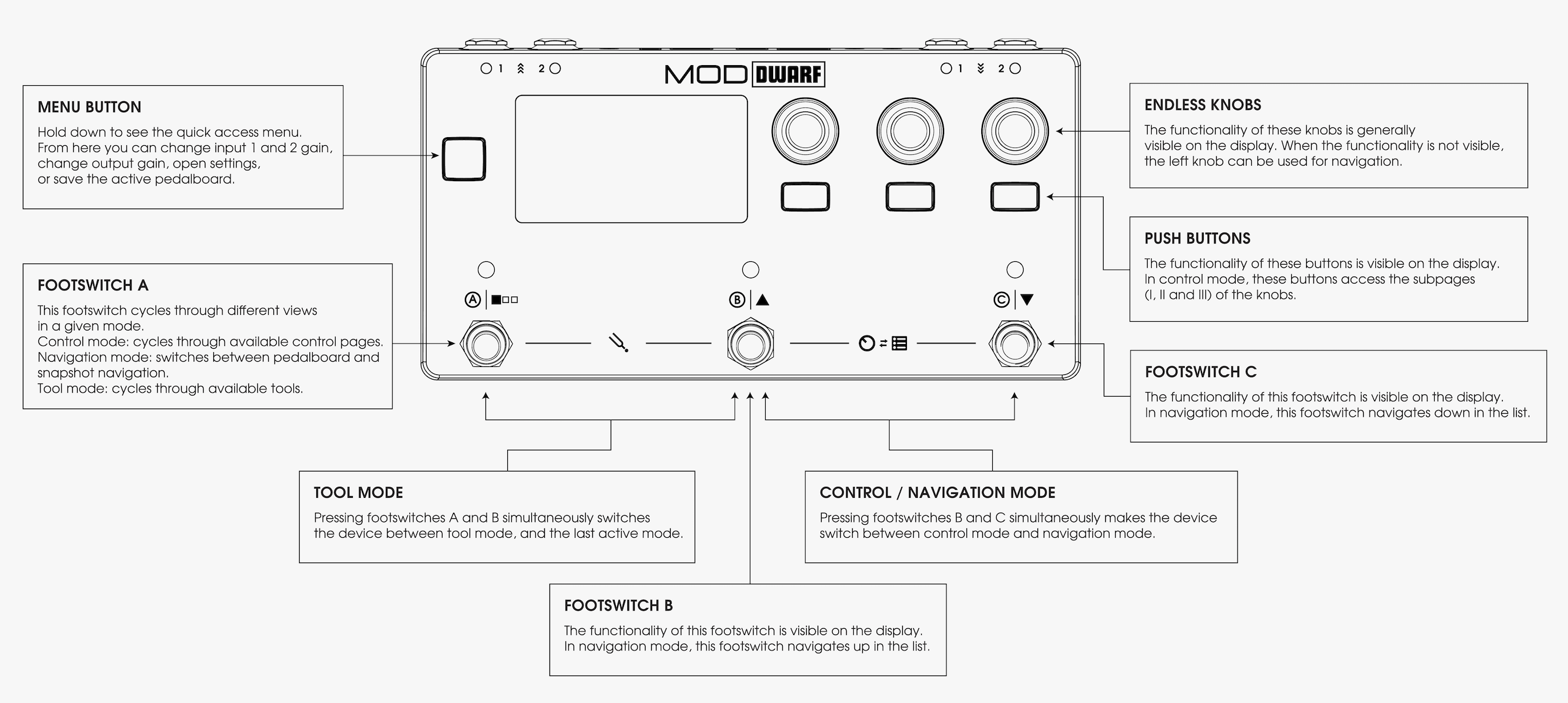
Encoders
The three endless knobs each behave differently depending on what's assigned to them:
- Knob — turn for a precise change, hold and turn for a coarse change.
- Trigger — turn left, turn right, or click to trigger.
- Toggle — turn left for off, right for on, or click to toggle.
- List — turn to open the list and step through it; click to open/close the overlay; hold, turn, then release to browse and immediately apply a value.
Some parameters can also be pushed for a full-screen view of the value or list.
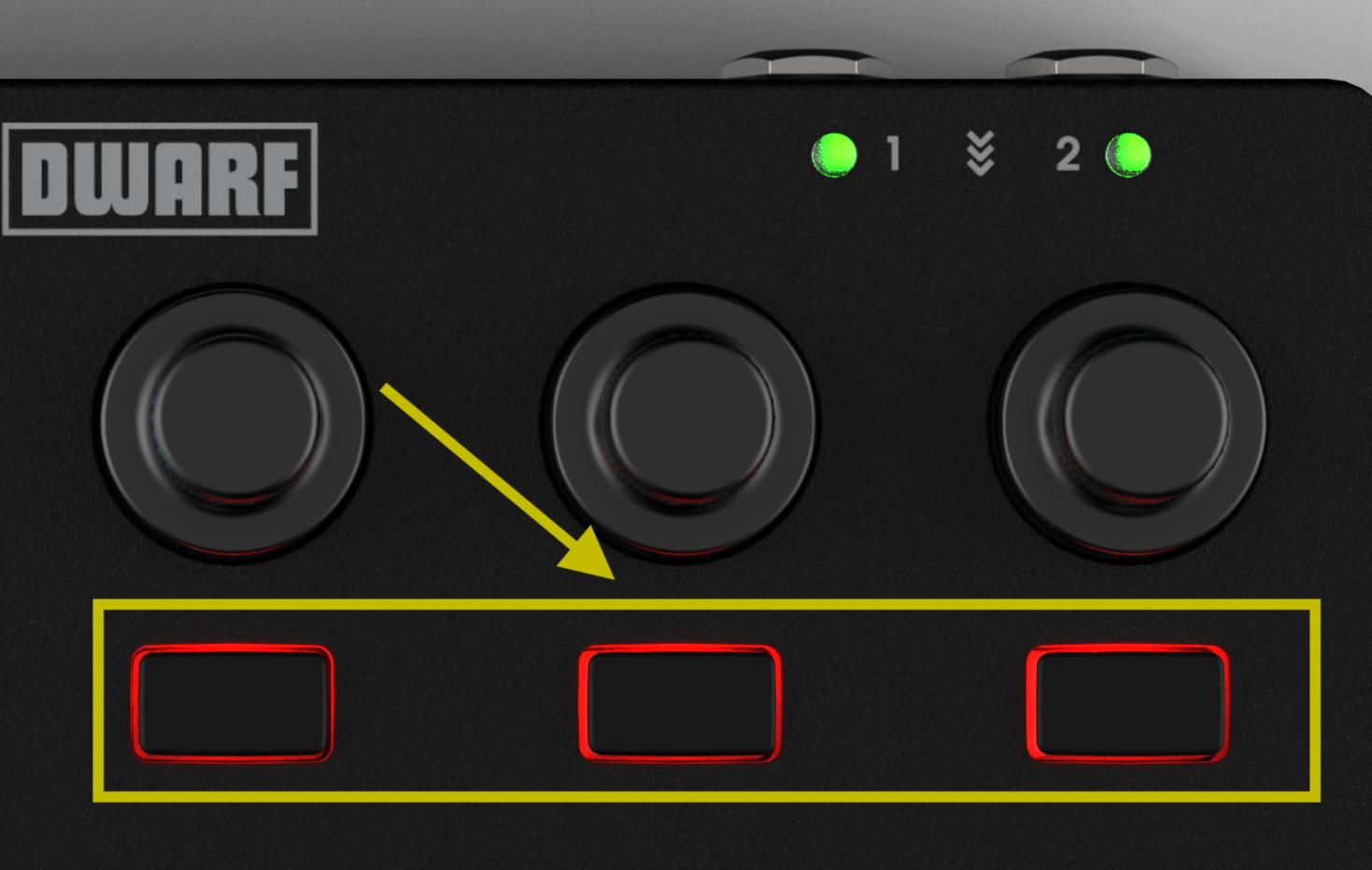
Push buttons
The three rectangular buttons under the encoders switch between the three encoder sub-pages in Control Mode, and perform the on-screen actions shown in Navigation Mode, the device menu, or Settings.
Menu button
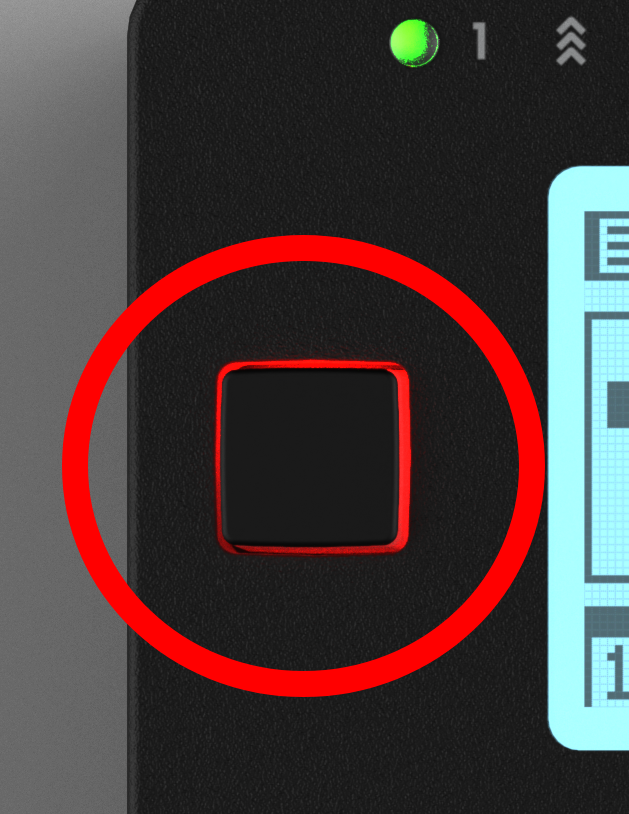
To the left of the display. Opens the quick menu, where you can save pedalboards and snapshots, jump into Settings, or adjust up to three parameters you've defined as Menu Items.
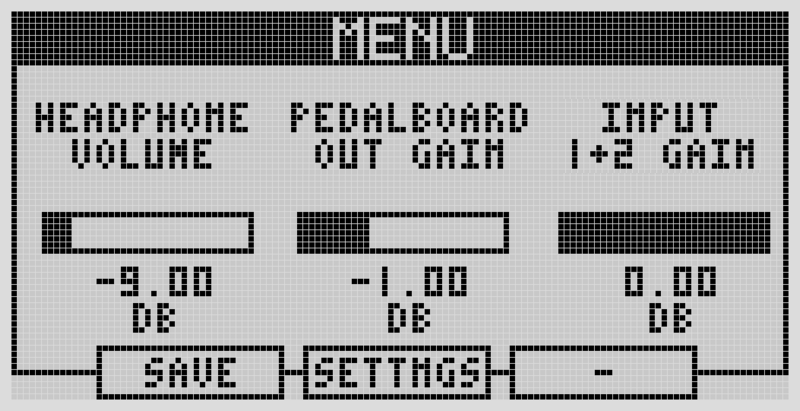
Display
2.9" LCD. Shows live control mapping in Control Mode, plus menus and tools when active.
Footswitches
Three footswitches (A, B, C), each context-dependent:
Footswitch A
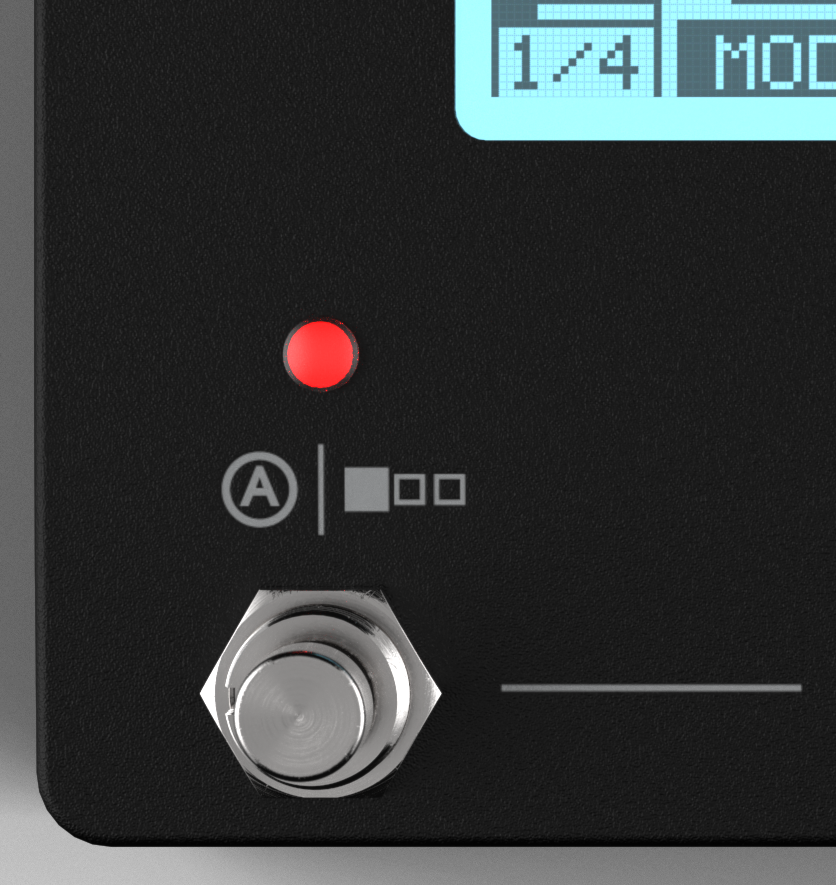
- Control Mode: cycles between the 8 assignment pages.
- Navigation Mode: cycles between the pedalboards and snapshots lists.
- Tool Mode: cycles between tools.
- Pressed with footswitch B: enters Tool Mode.
Footswitch A can't itself be assigned to a plugin parameter.
Footswitches B & C
- Control Mode: control whatever parameters the pedalboard creator mapped to them (up to 8 each via pagination), and — when mapped together — step up/down through list-based parameters.
- Navigation Mode: B steps up, C steps down the active list.
- Tool Mode: functions shown on screen, specific to the active tool.
- Pressed together: enters Navigation Mode.
LED audio meters
Each input and output has an LED that reflects signal level — see LED Meters.
Next: Navigation Mode