Factory Reset & Reinstall
The Dwarf is not software-brickable — no matter how badly stuck it gets, it can always be recovered by reinstalling the OS.
Back up first
A factory reset erases your data. Back up to a USB stick before you start. A factory reset does not remove licenses for plugins you've purchased.
If the device is stuck on the boot logo
Try reflashing the display controller first — this can happen if power was lost mid-update:
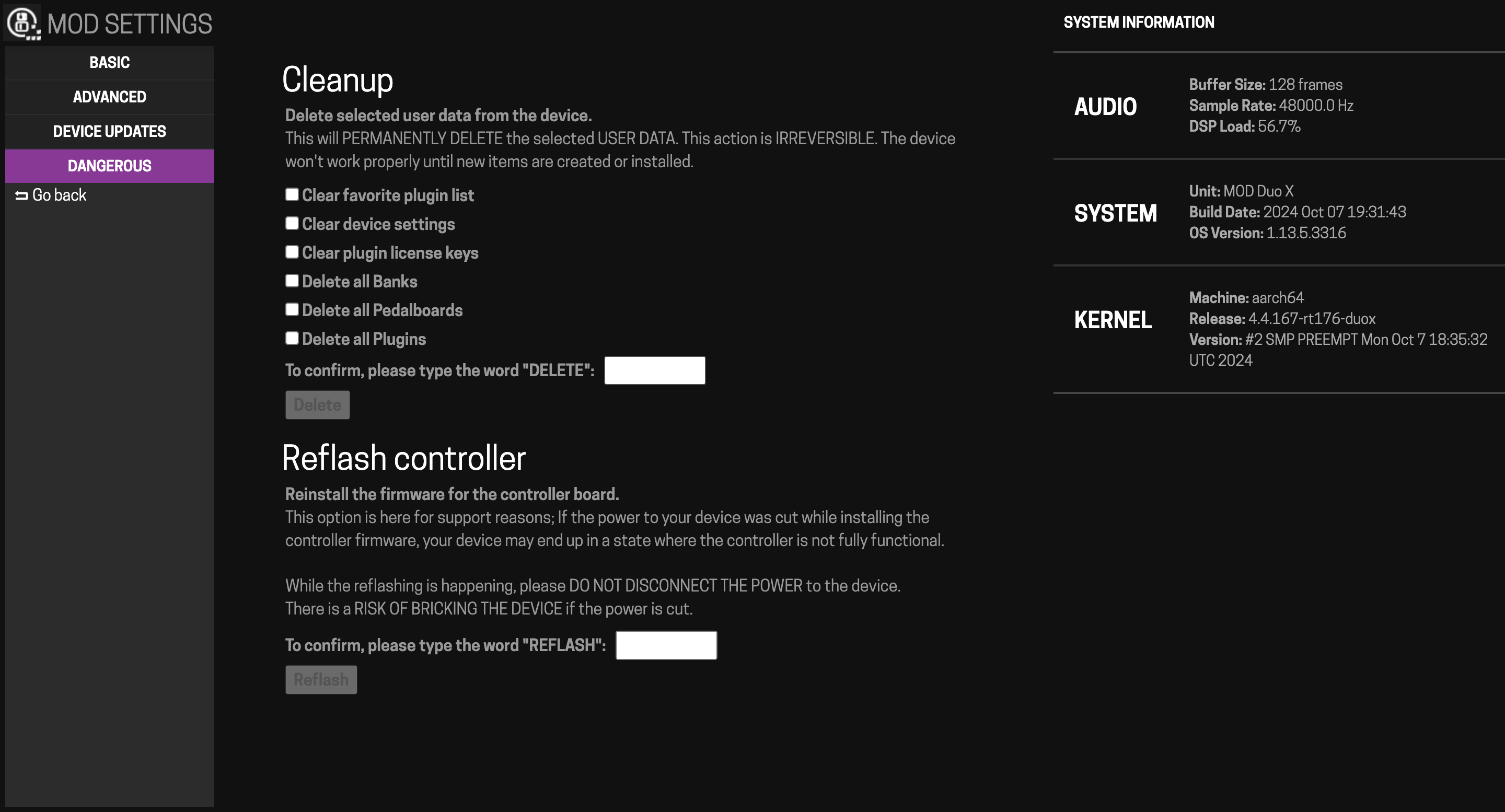
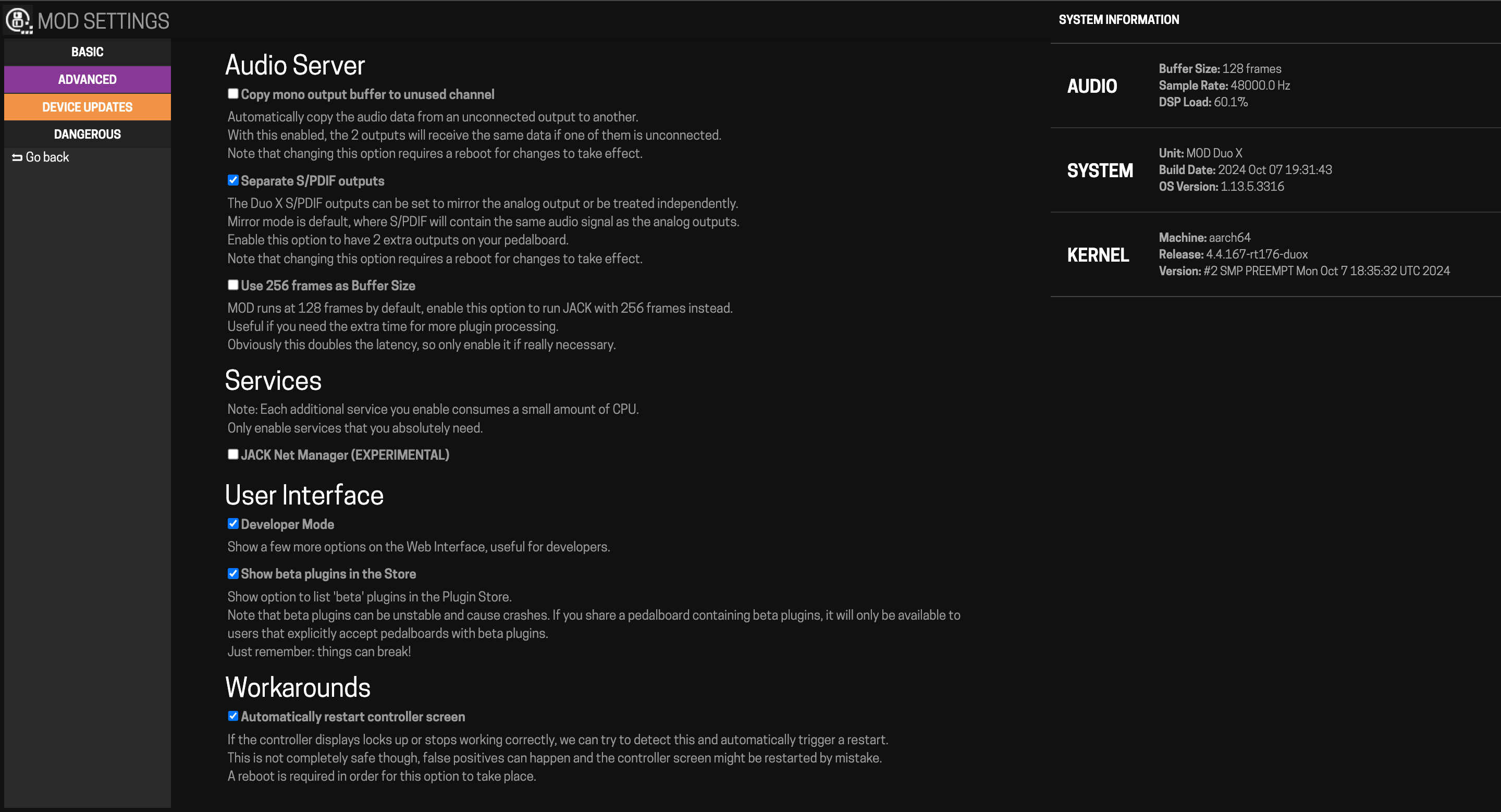
- Via Web UI: open the advanced settings page (bottom-right of Settings), go to the "Dangerous" section, follow the "Reflash controller" instructions.
- Via SSH: connect to
192.168.51.1(userroot, passwordmod), runhmi-update /usr/share/mod/controller/mod*controller.bin, wait for confirmation, then power-cycle.
If the device won't boot at all
Force it into recovery mode:
- Power off.
- Hold the left-most encoder and the leftmost footswitch.
- Power on while still holding them.
- After about 5 seconds, release — the device boots into recovery mode (LEDs turn blue, screen shows "plug USB cable to PC" or similar).
- Connect to your computer; a mass-storage drive should appear.
- Download the latest release from the Releases page.
- Copy the
mod*.tarfile onto that drive, then safely eject it. - Disconnect the USB cable and wait — the device updates and reboots itself.
If the device boots into recovery mode on its own (rather than you forcing it), the same steps 5–8 apply.
If nothing above works
If the device won't boot even in forced recovery mode, the bootloader itself may need reinstalling — this is a deeper recovery procedure. Contact support@mod.audio or the forum for the current Dwarf-specific bootloader recovery steps.
Next: Reference