Installing OS Updates
Regular OS updates are installed through the Web UI, not the device menu.
From the Web UI (normal path)
- Open Settings → Reboot & Update.
- Follow the prompts to check for and install the latest release.
- The device reboots automatically when done.
Back up first — see Backing Up Before You Update.
Manual update (maintenance / recovery path)
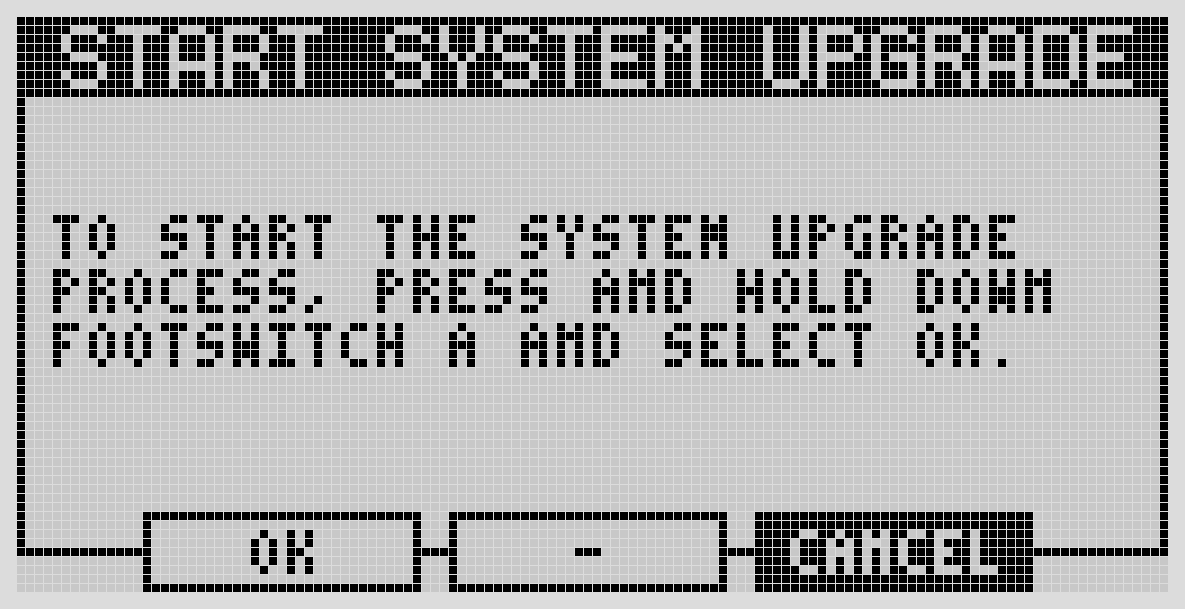
Use this only if the Web UI update path isn't available. From the device: Settings → System Upgrade. This is intended for maintenance situations; in normal use, updates go through the Web UI.
If the device gets stuck mid-update or won't boot afterward, see Factory Reset & Reinstall — the Dwarf can always be reinstalled, it isn't software-brickable.
Trying a test release
Release candidates go out to testers before each final release, installed the way described here.
New in 1.14
The test-release program started with the 1.14 candidates, published on the MOD forum in September 2026 — on 1.13.5 and earlier, there was no way to try a release before it went stable.
Test releases are announced on the MOD forum and by email. Each one has its own forum topic with the download links and checksums. You install it by hand:
- Make sure the Dwarf is already on 1.13.5 — earlier versions cannot install a test release file. If it is on an older version, install 1.13.5 first from the Releases page (same manual path), then the test release.
- Download the file for the Dwarf from the announcement.
- On the device: Settings → System Upgrade, then copy the file to the Dwarf when it appears as a USB drive. This is the same path as any manual update.
If the screen briefly shows "invalid file" and then goes back to asking for the file to be copied, the Dwarf is on a version older than 1.13.5. Nothing has been changed on the device — install 1.13.5 first, then try again.
A test release does not show up in Settings → Reboot & Update on its own: that panel only offers the stable release. The "Report a problem" button in the Web UI opens the test release's forum topic with your device details ready to paste.
Going back is the same manual install with an earlier image (for example 1.13.5). The Dwarf accepts an older image without complaint. Back up first either way — see Backing Up Before You Update.