Bluetooth
The Dwarf has no built-in Bluetooth radio — you need a Bluetooth USB dongle, version 3.0 or higher, plugged into the USB Host port. Plug the dongle in before powering the Dwarf on.
Enabling discovery
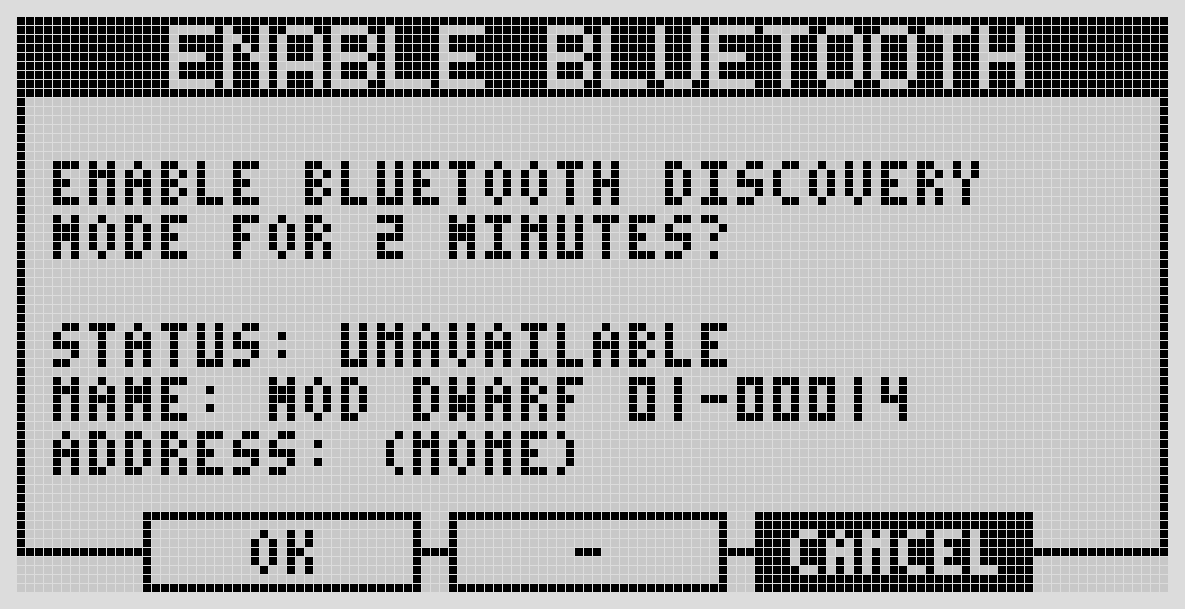
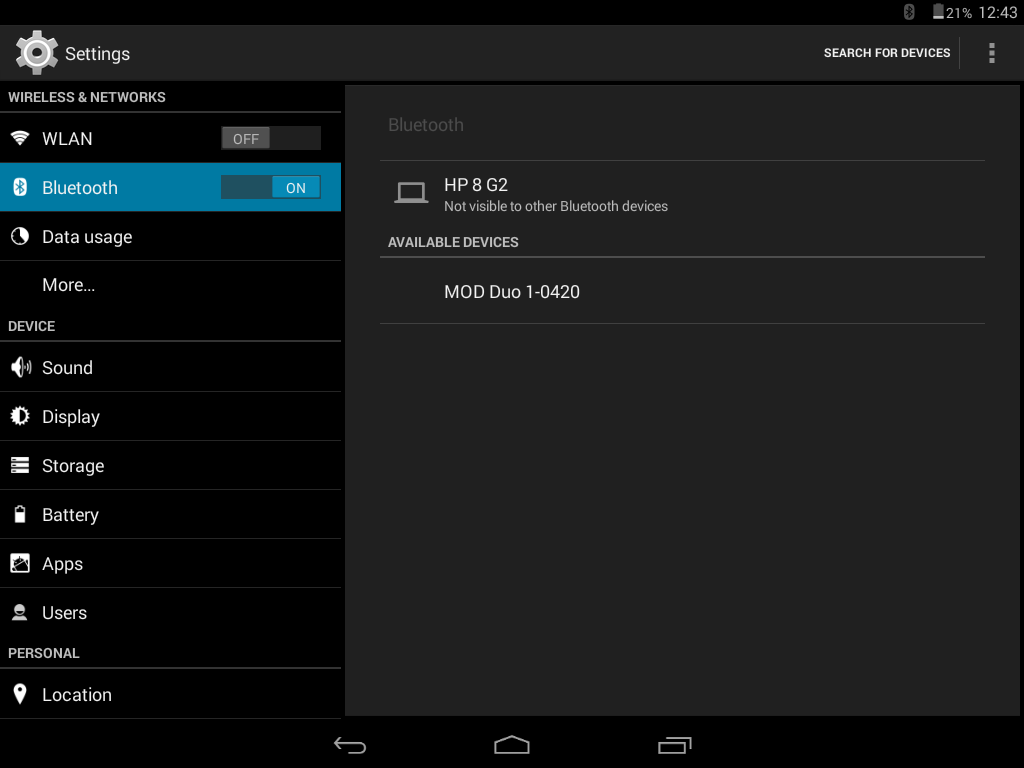
From the device: Settings → Bluetooth → enable discovery. This stays discoverable for 2 minutes. The same menu shows your connection status, the device's Bluetooth name (customizable from the Web UI settings), and its Bluetooth MAC address.
Pairing
Once discovery is on, pair from your computer or mobile device same as any Bluetooth accessory. If prompted for a PIN, use 0000.
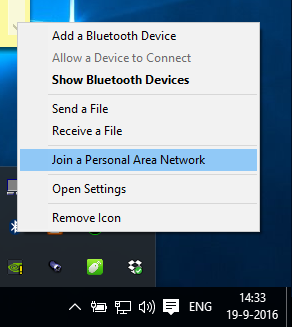
Windows: Join a Personal Area Network from the Bluetooth icon, add the device, connect using "Access point." You'll need to re-enable discovery on the Dwarf each time you reconnect.
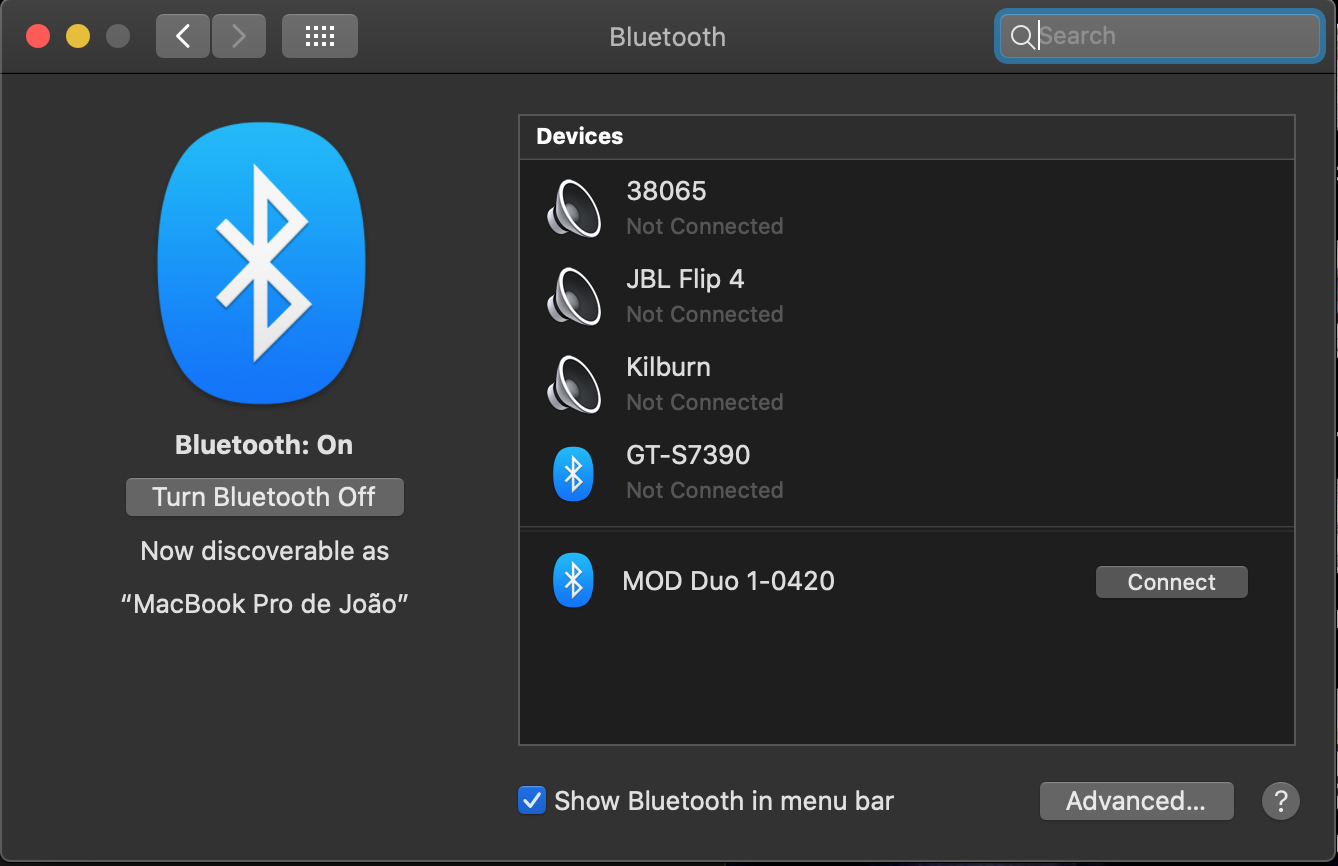
macOS: System Settings → Bluetooth, wait for the Dwarf to appear, connect.
Linux: use your distribution's Bluetooth manager to scan, pair, and join the network the Dwarf creates.
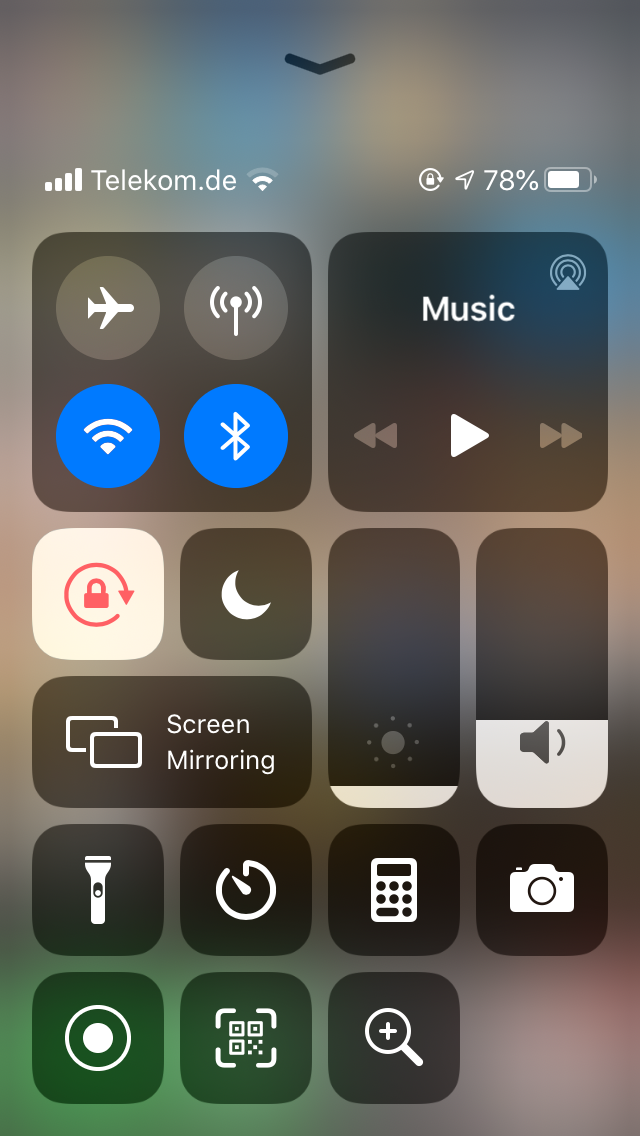
iOS / Android: enable discovery on the Dwarf, then pair from your device's Bluetooth settings. On Android, you'll also need to explicitly enable "Internet access" through the paired connection — note this disables your phone's normal internet access while connected.
Once connected
Open a browser and go to:
http://192.168.50.1
(Note the .50.1 — different from the .51.1 used over USB.)
If your dongle isn't recognized, check it's version 3.0+; older or unsupported chipsets will show as "Unsupported" in the Bluetooth status menu.
Next: USB Host Devices